Tuesday, December 14, 2010

Family Night


Family Night is right around the corner. What does this mean? Well, for starters it means that you have successfully completed the first phase of the program! After the winter break we'll be starting more new and exciting audio projects. BUT...before we get to that, let's use today to complete any unfinished work that you may have.

Here is a list of assignments that are to be turned in.
  • First full beat
  • And Still I Rise
  • Michael Jackson Remix
  • 1 extra remix OR 1 extra full beat
Let's take the time to make sure these 4 assignments are completed and turned in. If you have already completed these assignments, use today to start on new music. For those of you who are interested in having a visual representation of piano notes and scales, here is an excellent website you can use for reference: http://nfo.net/MFILE

Thursday, December 9, 2010

Remix Continued

Hello all! We will be continuing working on the MJ remix.  I want to remind you of a few key tips to song arrangement and using melodic instruments.

lets think about song structure...
There is the Intro, Verses, Chorus', Bridge, and Outro
The majority of the song is made up of what...... Verses and Chorus'


What are Verses and chorus made up of?
They are often made up of 4 bar loops

So......
Work with 4 bars at a time!
  • The songs that we work with have repeating 4 bar melodies and chords
  • work hard to find notes that sound nice for four bars
  • Add more instruments using the same notes but try different rhythms
  • Now you can copy and paste and arrange these 4 bar loops creatively
If you are done with the Michael Jackson Remix there is a folder in the Yellow folder labeled acapella wav that has more acapella songs that you can remix.  If you would rather just work on your own song you can do that as well.

New songs to remix:
  • Paparazzi, Lady Gaga Tempo 115
  • My Love, Maria Carey and The Dream Tempo 85
  • Rock the Boat, Aaliyah Tempo 93
  • Honey, Erykah Badu Tempo 88

Tuesday, December 7, 2010

Remix!

 Hola! Today we will be starting a remix of Michael Jackson's song Rock My World.  We will be using an acapella version of the song and be adding our own instruments to it. Here is what we will be working with:

In order to start making a remix of this song we need to know a few things about the song. What do you think we would want to know about the song in order to make a remix in Reason???

You would want to know the Tempo and The Key.  I have figured that out for you so you can get started!

The Tempo is 95 BPM
This song is in the key of G Major and the key of G major looks like this:
G A B C D E F# G
These notes will work well for you when you are adding melodic instruments to your song.

Also, here are some chords that will work well with this song

1 chord- G Major
4 chord- C Major
5 chord- D Major
6 chord- E Minor
Just like last week, we will be using the NN19 to add this Micheal Jackson Wave file.
You will be able to find the file in the Yellow folder.  


Instructions:
1. Find the Michael Jackson-You Rock My World(Acapella Version).wav file in the yellow folder and transfer it into your own folder on your desktop.

2. Create a New Reason session
3. Create a Mixer 14:2
4. Change the Tempo to 95 BPM

5. Create an NN19 digital sampler
6. Load the Acapella You Rock My World in the blue folder icon

7. In the Sequencer you will need to draw a note on C3 that goes to bar 84
8. OK now here is the part that is TRICKY. The lyrics will be off beat if we don't move them to a very particular beginning point.  I have figured out the exact location that will be easiest for you to work with. You will need to go the edit view for the NN19 and make sure that you select the 1/16 next to the magnet icon.
Now you will need to have the note on C3 start slightly after the 3rd beat.  This may be confusing so please us help you find the exact starting place.  It should look like this:

To Start here is a basic outline of the first part of the song:

Intro 1-3
First Verse 3-10
Pre Chorus 10-19
Chorus 19-27

Thursday, December 2, 2010

*And Still I Rise*


On Tuesday we started on the project of putting music to the poem "And Still I Rise" by Maya Angelou. Today we will finish up that project and some of you can share with the class!

The vocals are what we want the listener to focus on, make sure it is the most prominent part of the song. All other instruments should compliment the poem.

For this assignment please:
1. Use at least 3 instruments besides the vocals(if you have time add more!)
2. Have an Intro and Outro that support the words in the poem
4. Put Reverb on vocals
5. Save As (yourname)_StilliRise

REMINDER
On Thursday December 16th we will be having family night! Invite Parents, family and friends to see what you have been doing in class so far. You have put a lot of time into this class and now you will have a chance to show what you have accomplished! There will be food!

Tuesday, November 30, 2010

And Still I Rise


Welcome back! Hope you enjoyed your holiday. We're going to get started on a new assignment, which is something different than the previous assignments we've done before. Today we're going to work on producing music to a speech. The audio selected is from Maya Angelou's poem "And Still I Rise".


"Maya Angelou is one of the most renowned and influential voices of our time. Hailed as a global renaissance woman, Dr. Angelou is a celebrated poet, memoirist, novelist, educator, dramatist, producer, actress, historian, filmmaker, and civil rights activist."


Let's have a listen to the audio of And Still I Rise.


Are there any parts in the poem that you feel deliver an especially strong message? What type of music do you think would be played under a poem like this? Well, let's work on creating our own music based around it!


1. Open Reason


2. Create an MClass Mastering Suite Combi


3. Create a Mixer 14:2


4. Create a NN19 Digital Sampler


5. Do NOT Load in a Patch!!! Instead, click the folder above the keyboard on the NN19. Go to the Yellow Audio A folder and open the WAV file that says And Still I Rise. Now click the button on the NN19 that says SOLO SAMPLE.


6. Open up the "piano roll" on the NN19 track on the sequencer of Reason. The sample is located at C3. Draw a line leading from the beginning of the song to about 3 minutes.


7. Set your tempo to a bpm of your choice. You may want to make adjustments to the tempo to better fit the speech.


8. Now with these steps completed, create an arranged beat that plays from the beginning of the speech to the end. Try to cater this arrangement to the speech and not necessarily to a song. This means that choruses and verses don't have to follow a specific guideline, but you'll want to make sure you have different parts to your beat.

Tuesday, November 23, 2010

The MClass Mastering Suite Combi


Today we're going to look at the MClass Mastering Suite Combi. This mastering suite helps to control the overall sound quality of the entire beat. How does it do this? Through sound processing such as EQ, Compression and Limiting. We have mentioned these things before in our early talks of mixing. So where should the MClass Mastering Suite be located in your Reason session? At the Top!

There are times when you'll start a new Reason session and you'll automatically see the MMSC at the top. If this doesn't already work for you, let's look at how we create one.

1. Click the Audio Driver on your Reason screen.
2. Go to the Create Menu and click MClass Mastering Suite Combi.
3. It should now appear as the top instrument in your Reason session. You can now create your beat as you normally would.
We will further explore how to use this equipment in a future lesson.

Thursday, November 18, 2010

Converting your Reason file into an MP3


You should all have made at least one full song by today.  Its time to learn how convert your Reason file into an audio file that you can put on a CD or email to a friend! 

Once your Reason song is completed you need to find the END MARKER.  If you scroll as far as you can in the sequencer you should find the end marker. You will need to move the end marker to the end of your song.  
You should leave 1-2 bars between your last notes and the end marker. This lets you hear any reverb or ambient sounds that may follow your last notes and gives your song a more natural finish.

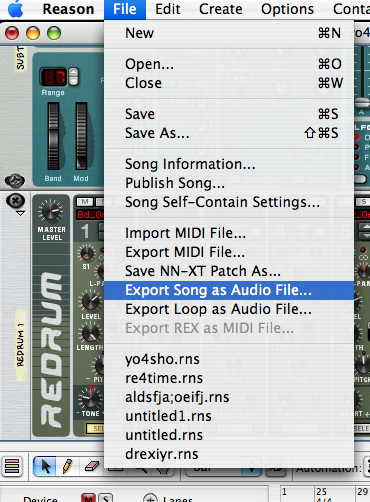
Once your end marker is in place, go to the File menu and select Export Song as Audio File...

A window should pop up where you can choose how to save the song. Make sure you save it as a WAVE file.  Once you hit Save an Audio Export Settings window will pop up. Keep the settings that are up and click Export.

You should now have a wave file of your song.  
Double click your new file and it should open in iTunes.


In order to email your song you will need to convert the song from a WAVE form to an MP3.  In I tunes you will need to go to Preferences in the iTunes menu.  

Click Import Settings...


In Import Settings make sure that MP3 Encoder is selected.


Now that you have the Settings ready you can easily convert your wave files to MP3s.  Make sure the song that you want to convert is hightlighted then go to the Advanced menu and click Create MP3 Version.  The new MP3 version should show up in just a couple seconds.


The Mp3 version is a smaller simpler file that you can easily attach to an email and put on a CD or Jump Drive.